How to Check if Your iPhone Is Carrier Locked (Simple Guide)
Not sure if your iPhone is locked to a carrier? This quick guide shows you how to check directly in your settings and understand what the results mean.
If you’re not sure whether your iPhone is locked to a specific carrier, there’s a quick way to find out directly from your device.
You don’t need any apps or technical knowledge—just a few taps inside your settings.
Why This Matters
A carrier-locked iPhone only works with one network provider. This can be a problem if:
- You want to switch carriers
- You’re traveling and need a local SIM
- You bought a used phone
Knowing your lock status helps you avoid unexpected issues.
Step-by-Step: Check Carrier Lock on iPhone
Step 1: Open Settings
Go to the Settings app on your iPhone.
Step 2: Tap General
Scroll down and tap General.
Step 3: Tap About
Inside General, tap About.
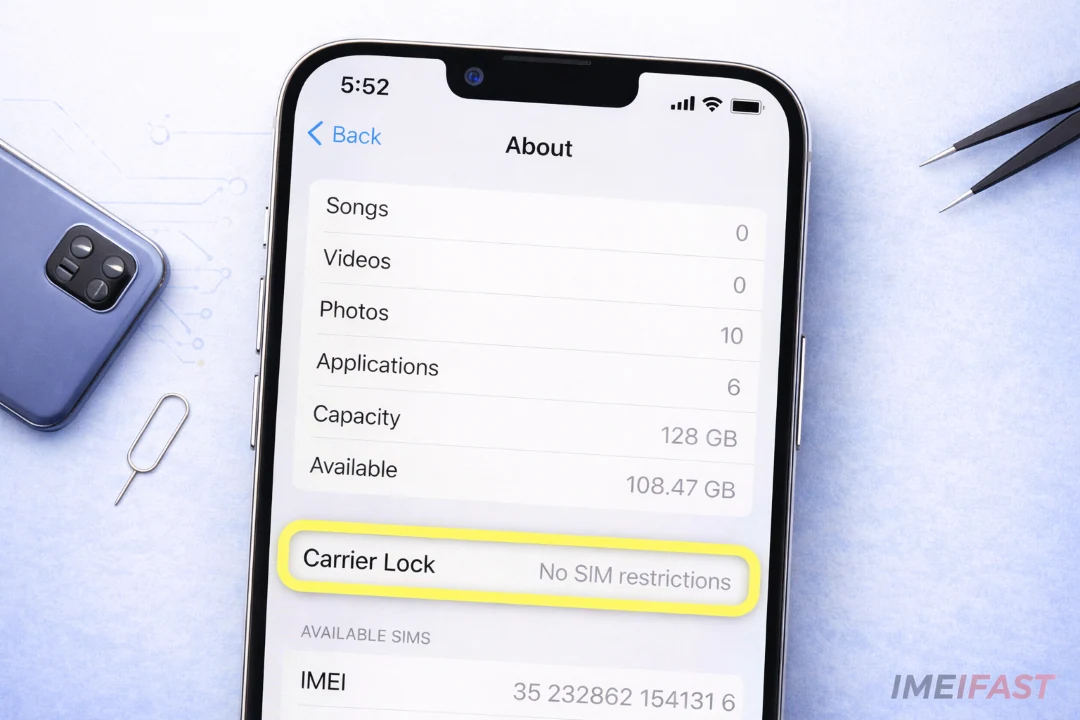
Step 4: Find Carrier Lock
Scroll down until you see Carrier Lock.
What You Should See
Here’s a real example:
How to Read the Result
✅ No SIM restrictions
Your iPhone is fully unlocked and works with any carrier.
⚠️ SIM locked
Your iPhone is locked to a specific carrier and may not accept other SIM cards.
Don’t Know Which Carrier Locked Your iPhone?
This is very common, especially with second-hand devices.
If you don’t know which carrier your iPhone is locked to, you can check it using your IMEI.
IMEIFAST allows you to quickly identify:
- The original carrier
- Lock status
- Network compatibility
This can save you time before switching SIM cards or providers.
When Should You Check This?
You should check your iPhone lock status if:
- You bought a used device
- Your SIM card isn’t working
- You plan to switch carriers
- You’re traveling internationally
Final Thoughts
Checking your iPhone’s carrier lock status takes less than a minute, but it can prevent a lot of confusion later.
If your phone shows “No SIM restrictions”, you’re ready to use any network.
If it shows “SIM locked”, you may need to contact your carrier or use a trusted IMEI check service to get more details.
By Joe Lemu — Mobile Device Specialist
Continue with related IMEI guides
Explore practical checks and verification guides before buying or selling a used phone.
Run a quick device screening before buying or selling a used phone.
Find out whether a phone may have been reported lost, stolen, or blocked.
Verify whether a phone is restricted to a specific mobile network.
Read the step-by-step guide to verify a phone safely before paying a seller.
More from our blog
Continue reading more IMEI, blacklist, carrier, and used phone guides.
New to eSIM? This beginner-friendly guide explains what an eSIM is, how it works, its advantages and disadvantages, and why travelers are switching to eSIM technology.
Your IMEI check says clean but your phone still doesn’t work? Learn the real reasons and what you can do before buying or using a device.
Wondering why the same IMEI shows different results on different websites? Learn the real reasons behind inconsistent IMEI checks and how to know which result to trust.
Can a blacklisted phone be fixed? Learn the real answers, myths, and what options you actually have if your device is blocked.